

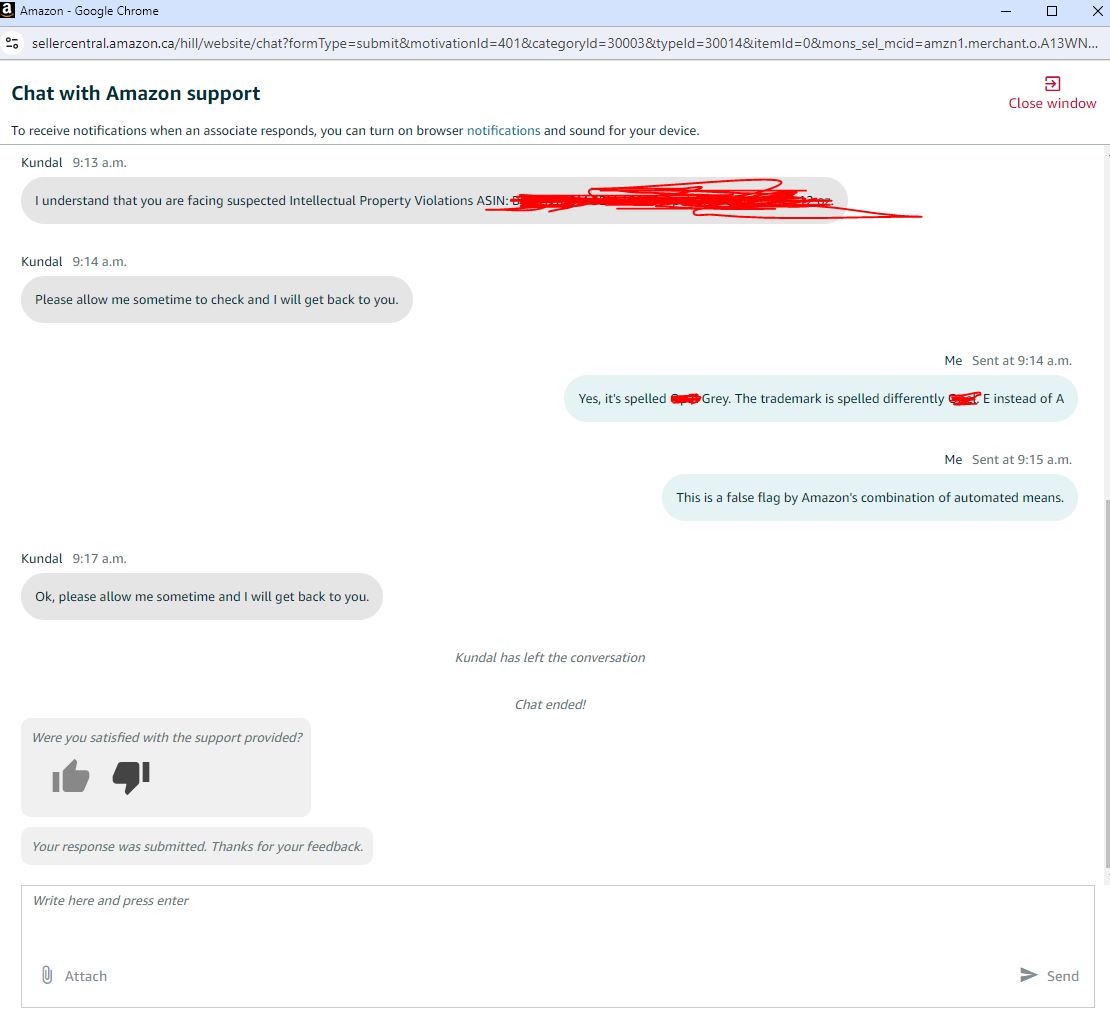
When issues arise on Amazon, sometimes an email case just won’t cut it. You need a real-time conversation, the ability to explain nuances, and quick answers. That’s where the Amazon Seller Support live chat comes into its own. While it might feel like a hidden feature, mastering how to initiate and leverage a chat session can significantly speed up your problem resolution and improve your overall selling experience.
Why Live Chat with Amazon Seller Support?
- Immediate Assistance: Get real-time answers to your pressing questions, often resolving issues faster than back-and-forth email exchanges.
- Clarification: Easily explain complex problems or ask follow-up questions to ensure the support agent fully understands your situation.
- Documentation: Chat transcripts provide a written record of your conversation, which can be useful for future reference or if further escalation is needed.
- Efficiency: For simple queries or quick checks, chat can be more efficient than a phone call.
How to Initiate a Live Chat with Amazon Seller Support
Accessing the chat function in Seller Central isn’t always immediately obvious, but it’s there for professional sellers. Here’s a step-by-step guide:
- Log in to Seller Central: This is your starting point for any interaction with Amazon Seller Support.
- Navigate to “Help”: In the top right corner of your Seller Central dashboard, you’ll find the “Help” link. Click on it.
- Choose “Get Support”: On the Help page, look for the “Get Support” button or link, which typically leads to your Case Log and options for contacting support.
- Describe Your Issue: This is a crucial step. You’ll be presented with options to describe your problem.
- Be Specific: Instead of a generic “Account Issue,” try “Listing not showing up” or “FBA inventory discrepancy.”
- Use Keywords: Input relevant keywords related to your problem. This helps Amazon’s system direct you to the right department and potentially unveil the chat option.
- Select a Category: Choose the most appropriate category for your issue (e.g., “Products, Listings, or Inventory,” “Fulfillment by Amazon,” “Your Account”).
- Look for the “Chat” Option: After you’ve described your issue and possibly gone through a few suggested help articles, Amazon will present you with contact options. For many issues, especially for Professional Sellers, “Chat” will appear alongside “Email” and potentially “Phone” (“Call Me”).
- Important Note: The availability of the chat option can sometimes depend on the nature of your query, the time of day, and your selling plan (Professional sellers generally have more direct contact options). If you don’t see it immediately, try rephrasing your issue or selecting a slightly different category.
- Start Your Chat: Click on the “Chat” button. A new chat window will open, connecting you with an Amazon Seller Support agent.
Tips and Tricks for Effective Live Chat
- Have Information Ready: Before you start the chat, gather all relevant information: ASINs, Order IDs, batch numbers, screenshots, error messages, and any previous case IDs related to the issue.
- Be Clear and Concise: While you’re in real-time, avoid overly long sentences or rambling. Get straight to the point and clearly articulate your problem.
- Maintain Professionalism: Even if frustrated, always remain polite and professional. A courteous tone can lead to a more helpful and efficient interaction.
- One Issue Per Chat (Ideally): While tempting to lump multiple problems together, focusing on one specific issue per chat often leads to faster and more targeted resolutions.
- Confirm Understanding: After the agent provides a solution or takes an action, politely ask for confirmation or a summary of what has been done.
- Request Case ID: Always ask for the case ID of your chat session. This allows you to easily refer back to the conversation if you need to follow up or if the issue resurfaces.
- Save the Transcript: Many chat systems allow you to email or download a transcript of your conversation. Do this for your records.
- Know When to Escalate: If the chat agent isn’t able to help or you feel you’re getting generic responses, politely ask if the case can be escalated to a specialist team or a supervisor.
Let Bettersell.co.uk Streamline Your Amazon Support Interactions
Navigating Amazon Seller Support can be a full-time job in itself, especially for new sellers. If you find yourself spending too much time trying to get answers or resolve complex issues, bettersell.co.uk is here to help.
Our experienced team understands the intricacies of Amazon’s support systems, including how to effectively engage with live chat agents. We can help you articulate your issues clearly, provide the right information, and persist until your problems are resolved. By leveraging bettersell.co.uk, you can reclaim valuable time, reduce frustration, and ensure your Amazon business runs as smoothly as possible.
Leave a Reply